

User manual — Fashion Studio
How to register, buy a campaign, upload product or physical-presence photos, and download the finished lookbook images and videos.
What Fashion Studio is
Fashion Studio turns simple product photos (and, if you want, photos of a real person) into campaign assets: lookbook stills and short fashion videos for e-shop, Instagram, Reels, and TikTok.
You do not need a new shoot for every collection. The flow is:
- Register a brand on studio.gaiant.ai (company or individual).
- Buy a pack with Stripe. A production order opens immediately.
- Fill in the brief and upload product photos (plus physical-presence photos if you choose that option).
- Submit. The gAIant production team builds the assets.
- When they are ready, download them from the same order.
Who does what
| Action | Who |
|---|---|
| Register, buy a pack, write the brief, upload source files | You (brand / boutique) |
| Card payment (Stripe) and invoice download | You |
| Produce images / video and upload deliverables | gAIant Fashion Studio team |
| High-volume custom pack | Contact gAIant |
Example: Romina Secret
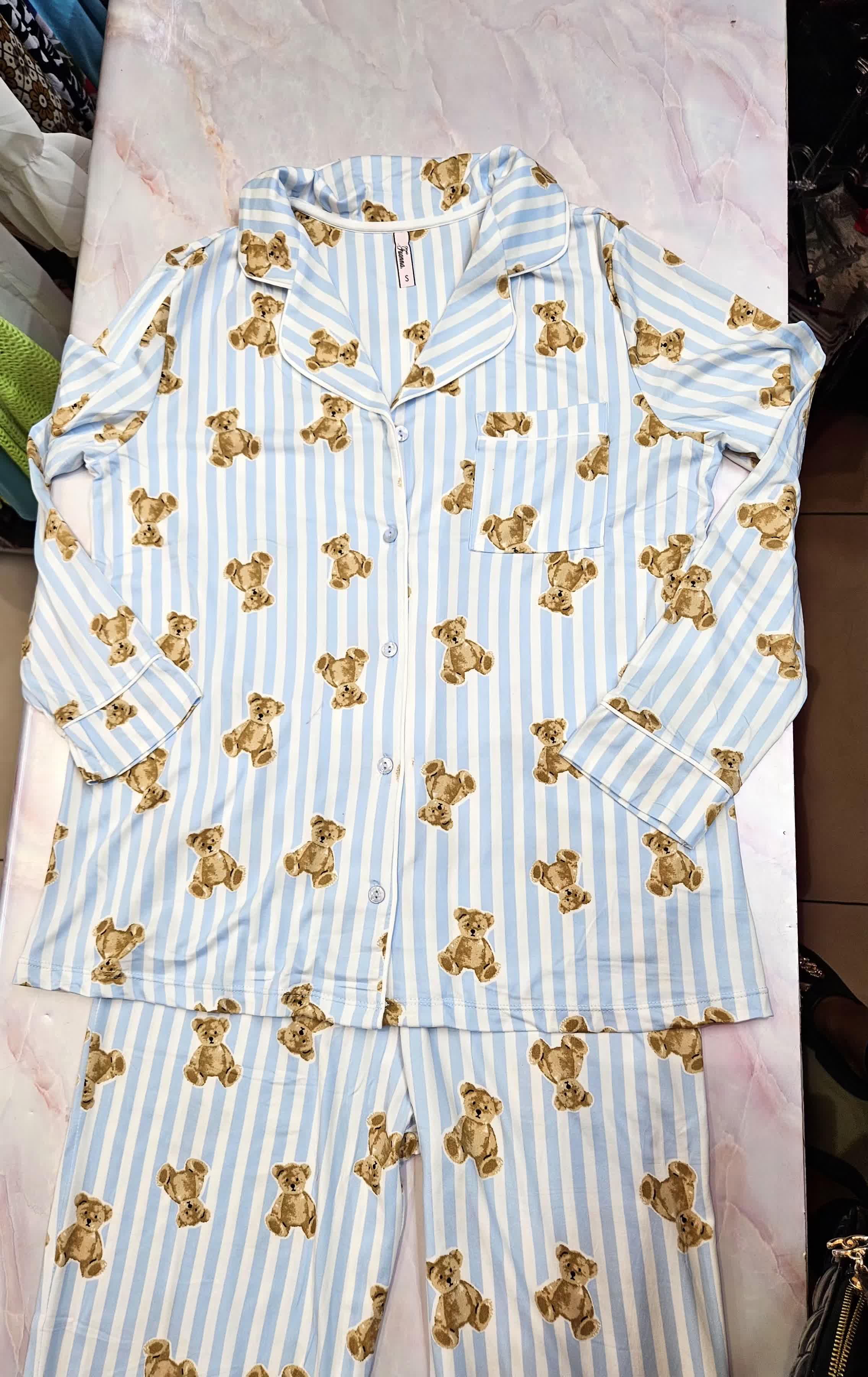
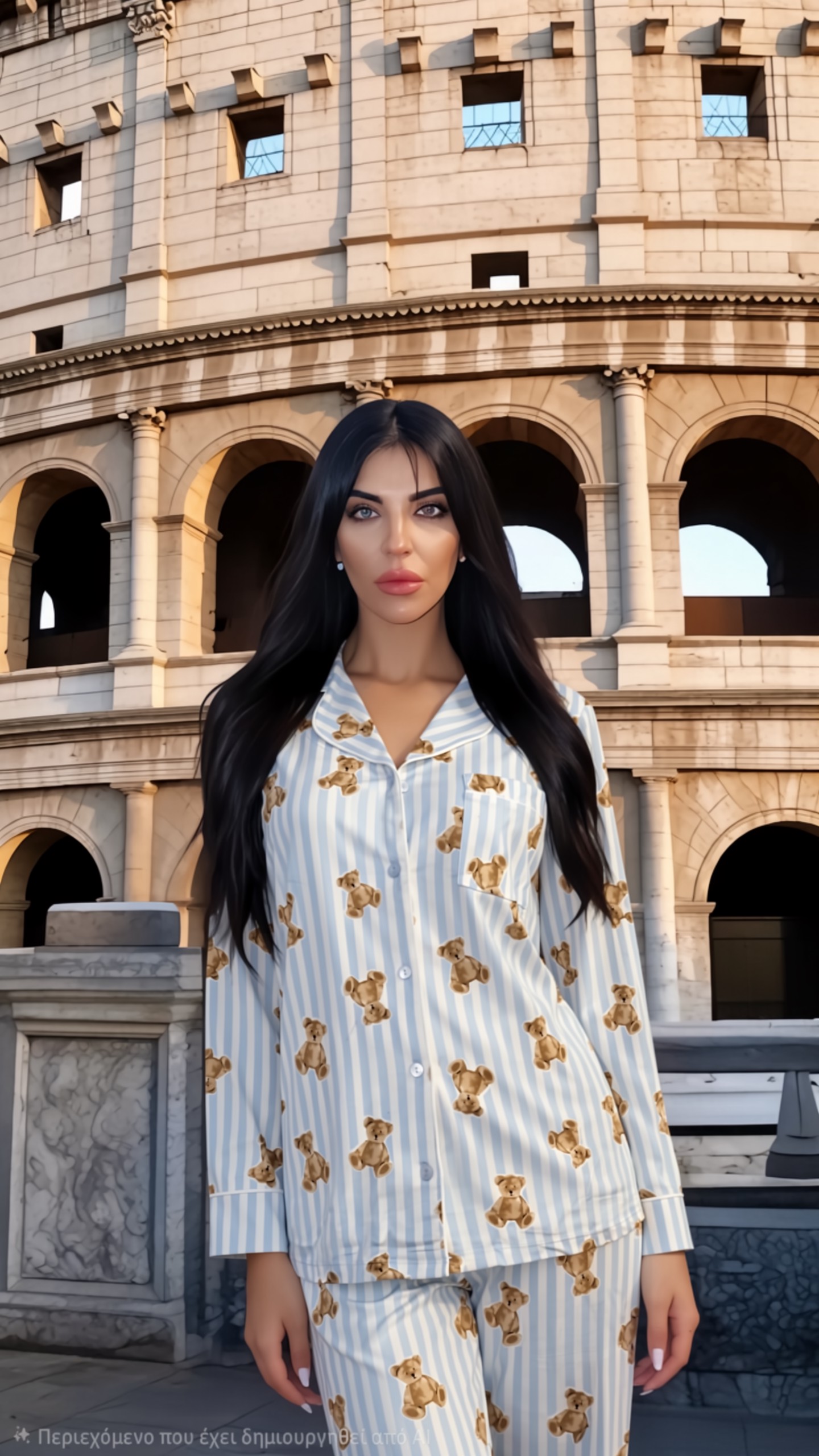
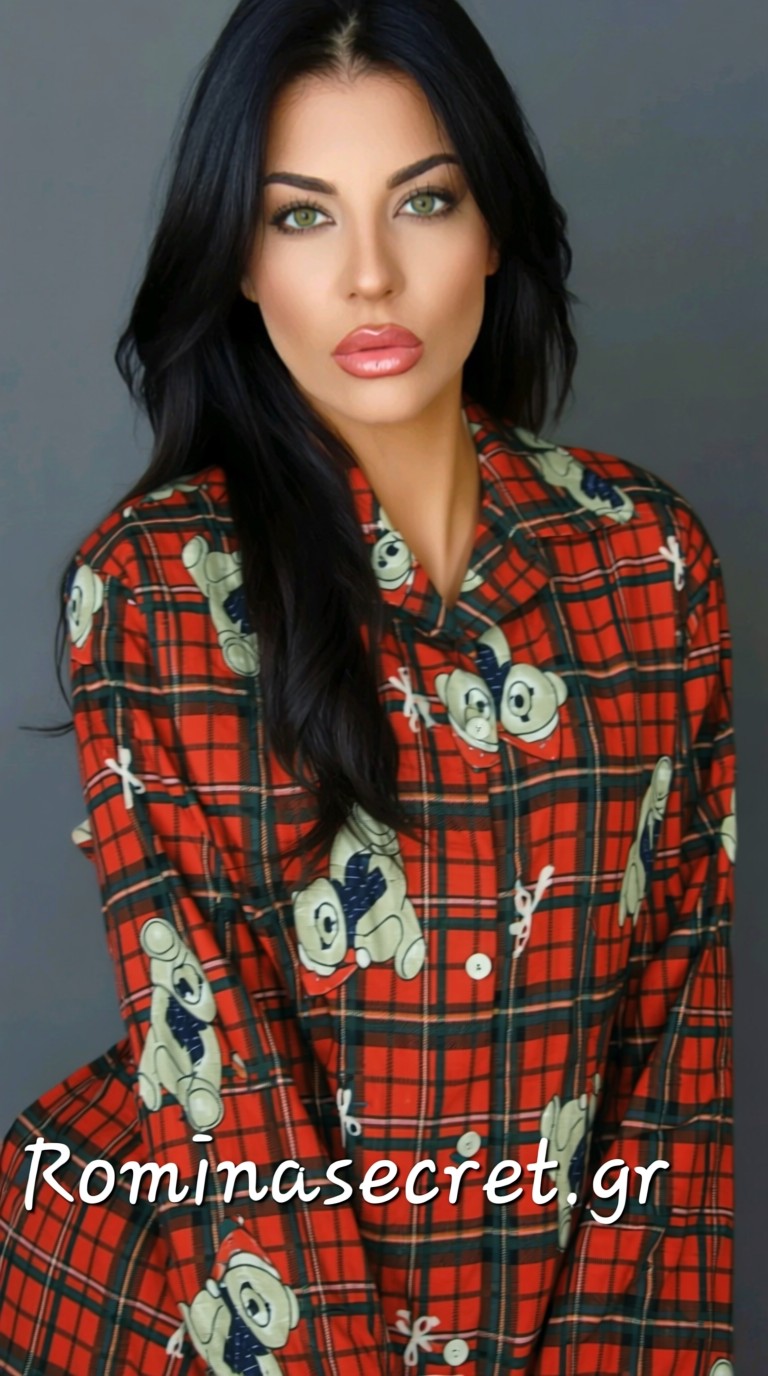
Partner Romina Secret uploaded a product photo and a physical-presence photo. Studio produced a Colosseum lookbook still and a short fashion video.

Brand registration
- Open https://studio.gaiant.ai → Register your brand.
- Choose Company or Individual.
- Fill in:
- Email * and password * (at least 8 characters)
- Brand / boutique name *
- Legal name or full name *
- VAT (required for companies), tax office, address *, postal code *, city *
- Phone and website (optional)
- Submit → you are signed in. Billing details go to Stripe with the first purchase.
If you are already signed in to another gAIant product, the same form adds a brand profile to that account — no second login.
Sign in and menu
- Sign in with the brand email / password.
- Top left: logo (back to Studio).
- Horizontal menu: Buy Campaign, Orders, Payments.
- Top right: language (EL / EN) and the square avatar with brand initials.
Buy a campaign
Prices are shown net. VAT is added at Stripe checkout.
| Pack | Includes |
|---|---|
| AI Fashion Starter | 1 product · 8 images · 1 video · 1 concept · 1 revision round |
| Fashion Pack | Up to 5 products · 30 images · 3 videos · 2 concepts · 2 revision rounds |
| Collection Pack | Up to 10 products · 60 images · 6 videos · 3 concepts · 2 revision rounds |
| Custom | By agreement — contact button, not Stripe purchase |
- Open Buy Campaign.
- Click Buy with Stripe on the pack you want.
- Enter card details in the payment modal — you stay on studio.gaiant.ai.
- On success an order opens. Go to Orders to upload photos.
Orders
The list groups work as Not started, In progress, Completed. Click a card to open the brief.
- Campaign name — optional, e.g. “Spring silk lookbook”.
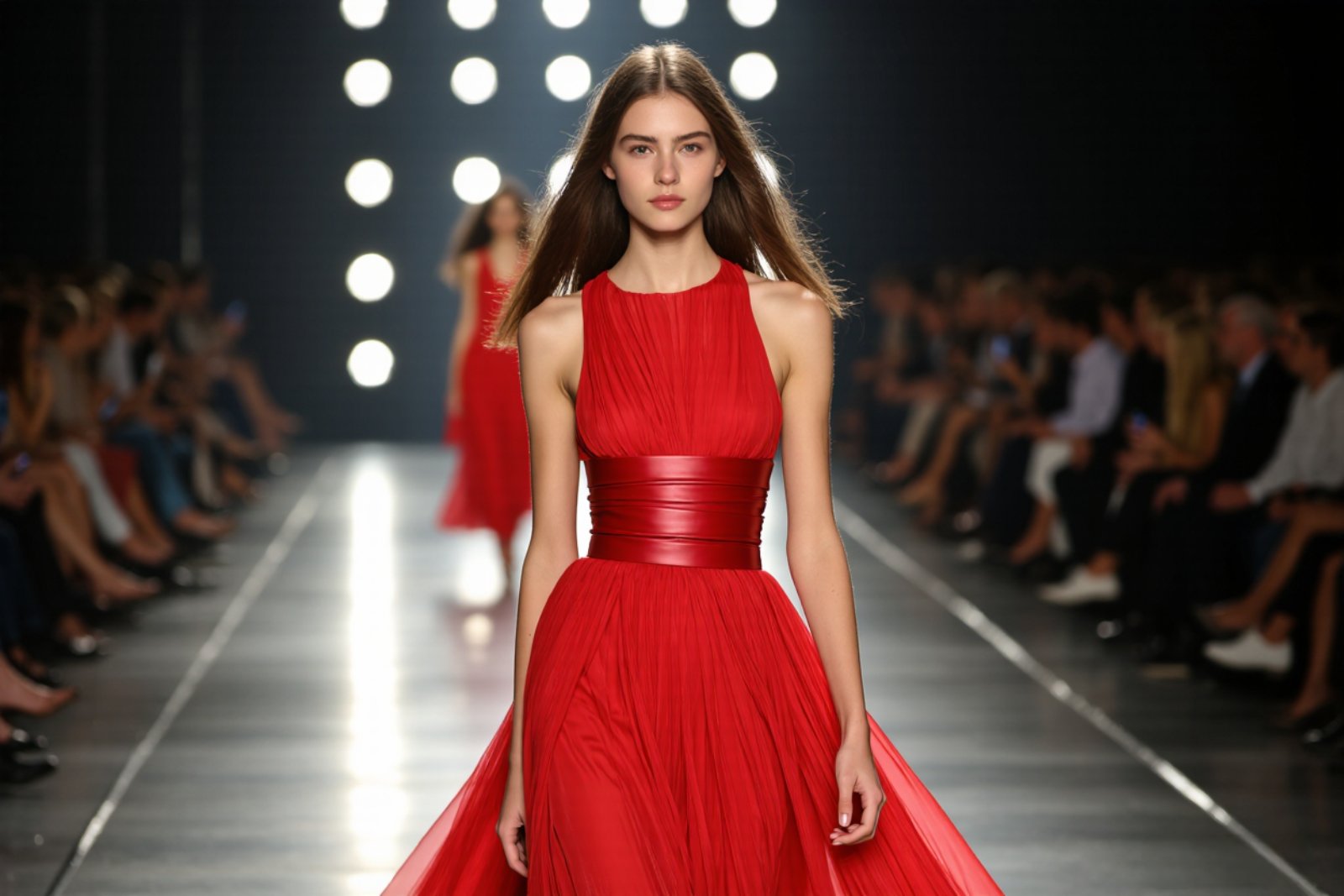
- Production option — AI models or physical presence.
- What should we create? — your brief.
- Aesthetic / references — colours, mood, examples.
- Source files — product photos / video (and physical presence if selected).
AI models or physical presence
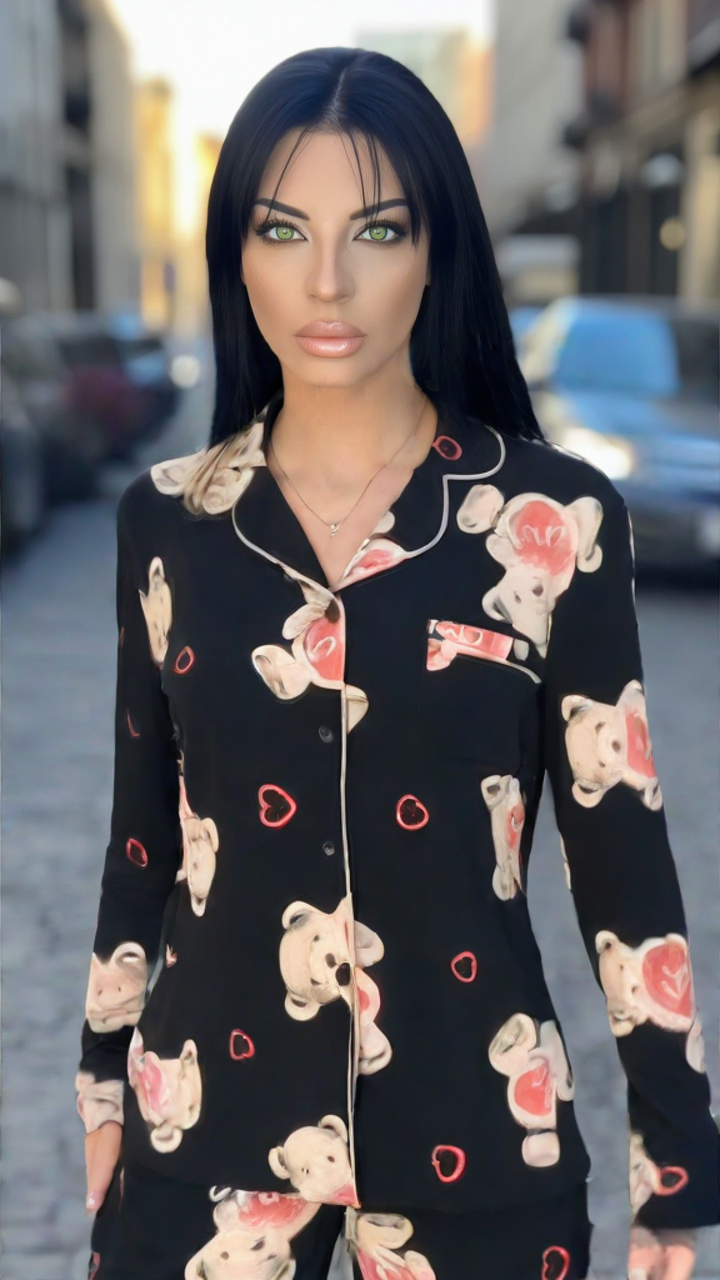
Uploading files
- Drop a file on the box or click to choose. Images and video are accepted.
- Product photos need a product name (required). Same name = same garment.
- Physical-presence names are optional.
- Video is counted separately and does not use photo slots.
- Quota bars show remaining products / photos / videos / physical-presence slots.
When ready, submit the materials. The order moves into production.
Order statuses
| Status | Meaning |
|---|---|
| Awaiting materials | Pack purchased. Fill the brief, upload files, submit. |
| Submitted | The team can see it. You can still edit until it is assigned. |
| Assigned | Locked. Production is underway. |
| Ready | Download images and video from deliverables. |
| Cancelled | The order will not proceed. Contact us if you need details. |
Deliverables
When status is Ready, files appear on the same page. Preview or use the download icon. Keep them for e-shop and social.
Payments and invoices
Payments lists every purchase (paid / pending / failed), with date filters. Paid rows can download the Stripe invoice.
Brand profile
Avatar (top right) → View / Edit profile. Update legal name, VAT, address, and contact details used on invoices.
FAQ
How many photos per product?
Upload extra photos of the same garment with the same product name. The pack product limit counts unique names.
What about revisions?
Each pack includes 1 or 2 revision rounds. Describe changes while the job is open, or contact us after delivery.
Video will not play on my phone.
Download the file and open it locally. Prefer MP4.
I need a larger monthly volume.
Use the Custom pack / contact form at /studio/contact.